CoyoteTracker

What is the Coyote Tracker?
The CoyoteTracker is a DIY head tracker designed to be accessible, affordable, and high-performing.
With a base version costing around €25, it offers an excellent alternative to the often much more expensive head trackers on the market—even if it doesn't claim to match their exact level of performance.
The project was designed to be simple to set up, requiring neither advanced technical skills nor complex assembly; it relies on off-the-shelf, ready-to-use hardware.
Everything needed to build it—software, firmware, and resources—is provided for free by the Coyote, allowing everyone to enjoy quality head tracking without breaking the bank.
And in practical terms? What does that look like?
Of course, no one wants to invest time and money in a project that doesn't quite cut it...
The Coyote Tracker doesn't claim to be perfect or superior to other head trackers; it even has a few flaws you have to work around. For instance, it lacks a built-in compass, meaning it may occasionally need re-centering. Also, its inertial unit doesn't support lateral movement.
Nevertheless, given its low price, it remains perfectly usable—and you can watch the demo video to get an idea of the results.
What equipment do I need to get started?
For the basic version, you will need to acquire an M5Stick-S3; it contains all the hardware required for position tracking and data transmission to your computer via Bluetooth BLE.
You can easily find it online, but I recommend buying it directly from the manufacturer—they are reliable, fast, and offer the best price. You can find it >> here <<.
If you have an old M5Stick-C-Plus2 lying around, you can use it, but it will only be compatible with firmware version 1.0. Since I will no longer be updating that version, you won't benefit from any future improvements or bug fixes.
On the computer side, you will need a Bluetooth BLE receiver. In case you missed it, the CoyoteTracker operates wirelessly and transmits data via BLE.
Nowadays, all laptops come with built-in BLE, but if you are using a desktop or a machine that lacks it, any USB Bluetooth dongle costing less than €10 will work perfectly.
And to program all that?
Now that you have acquired your Stick, you need to program it with the CoyoteTracker firmware.
It is a very simple process—no need to be an electronics or computer engineer; Coyote has done the hard work for you.
Download CoyoteTrackerFlasher.exe (Windows only) and run it. There is no installation or configuration required: simply plug your Stick into your PC's USB port, select your Stick model (CPlus2 or S3), choose the port, and click "Flash" once the button becomes active. Wait a minute, and you're done! Easy, right?
All that remains is to connect your CoyoteTracker to your device via Bluetooth. You can find full details on connecting and configuring your CoyoteTracker in the Tracker User Manual Tracker User Manual, which I highly recommend reading.
Okay, and how do I use it?
The CoyoteTracker sends data to your machine in BLE HID format. If you are not on Windows, you can use any software capable of interpreting this data so that the CoyoteTracker simulates a mouse, a pad, or a joystick...
If you are on Windows (10 or 11), good news, Coyote has developed the CoyoteTracker Companion for you, a fully automatic interface which installs and configures Opentrack (opensource HID interface), launches it automatically, and starts tracking when it detects your simulator. And the icing on the cake is that if the pre-recorded configuration is not to your liking, you can always make your changes manually.
To install it, nothing could be easier: download CoyoteTrackerSetup.exe, run it (it's an installer) and let yourself be guided
Once installed and launched, all you have to do is tell the CoyoteTracker Companion how you want it to work, and for that, I strongly invite you to read the Companion's Instructions for Use.
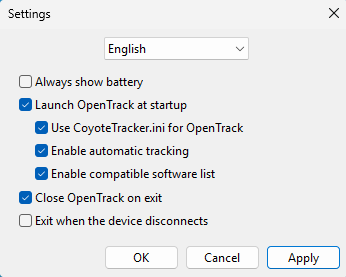
The first thing to do is select the language (16 languages available) and click Apply to immediately translate the interface.
Here is the configuration I recommend for an optimal experience:
And when everything is set up?
Whenever you want to use your tracker, simply:
- Turn on the tracker,
- Launch CoyoteTracker Companion (just launch it; there is nothing else to do),
- Launch your simulator (e.g., Condor 3); if it is on the list of software recognized by Opentrack, tracking will start automatically.
Then, enjoy the experience!
It works, but an hour and a half of battery life?
Unfortunately, the M5Stick-S3 runs on a 350mAh internal battery, giving it a runtime of about 1 hour and 30 minutes in our typical use case.
You have two options to improve this:
1 - Connect your stick to a USB power source. While this works, one of the CoyoteTracker's key advantages is its wireless operation. Also, keep in mind that if your USB source has a high level of "electronic noise," it may interfere with the CoyoteTracker's gyroscope.
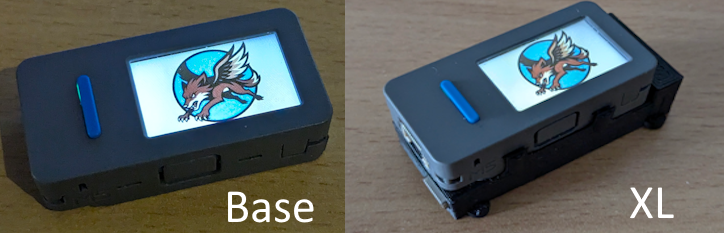
2 - Upgrade from the standard version to the XL version by purchasing the external battery.
This battery was developed and manufactured by Coyote specifically for the stick's use as a CoyoteTracker. It extends the total runtime from approximately 1.5 hours to about 3.5 hours. Equipped with a USB port, it allows you to charge both the auxiliary battery and the Stick's battery simultaneously. The stick clips directly onto the battery, and the unit features a simple mounting system that lets you attach the combined Stick and battery setup to your headset, cap, etc.
>>> More info or purchase here <<<
Support the project
Thank you for your interest in the CoyoteTracker project.
This project was developed entirely by a single person and required over three months of work, including prototyping, programming, electronics, and more.
It makes no claim to perfection—far from it—yet it is fully functional and offers an alternative to far more expensive "professional" systems.
It is provided to you free of charge; however, if you would like to see it improved or evolve into a more advanced version—or simply wish to thank the author for his work—you can show your support by making a donation.
The Coyote thanks you in advance.
FAQ
Q: Is there a place where I can find help or discuss about CoyoteTracker?
A: Yes, on the Vol du Coyote Discord; look for the 'CoyoteTracker-discussion' channel, and don't hesitate to shar your feed-back!
Q: I bought a brand-new M5Stick-S3, but I can't flash it!
A: The stock M5Stack bootloader doesn't automatically enable flashing mode on the M5Stick-S3. Press and hold the on/off button until the green LED flashes, then try flashing again. You won't need to repeat this step for future flashes.
Q: When I select the stick, I see "Stick detected," but I get "Flash error code 2" when trying to flash.
A: You likely selected the wrong stick model. Select the correct one and try again.
Q: What is the difference between firmware 1.0 and 1.1?
A: There is no difference in terms of functionality. However, firmware 1.0 is intended solely for the M5Stack C-Plus-2; since that device is no longer supported, there will be no further firmware updates for it.
Q: I've installed CoyoteTracker Companion, but I can't find the menus.
A: Left-click the ^ icon in the bottom-right corner of the Windows desktop, then right-click the CoyoteTracker Companion icon.
Q: Can I use a program other than Opentrack?
A: Yes. CoyoteTracker sends HID data to Windows, so you are free to use any program you like to handle it, though you won't benefit from the Companion's automatic configuration options.
Q: The simulator I use isn't on the CoyoteTracker Companion list; does that mean I can't use CoyoteTracker with it?
A: You certainly can. As long as your simulator is compatible with Opentrack, you can simply add it manually to the auto-detection list. You'll find all the necessary instructions in the Opentrack documentation.
Q: While playing, I occasionally notice small jerks when I'm close to the center position.
A: That’s normal; it’s the auto-center feature correcting the position. If you’ve set the auto-center range to 3°, for example, the moment your head is positioned within +/-3° of the center and remains still, the system snaps the view back to 0°. This automatically corrects minor drift, though a side effect is that it recenters the view when you are already close to the center. It can be a bit disorienting at first, but you’ll get the hang of it very quickly.
Q: I kept my head turned for a while, and when I returned it to the center, the view wasn't centered anymore.
A: That’s normal, though fortunately, it doesn't happen every time. The BMI270 gyroscope inside the stick lacks a built-in compass, so it doesn't automatically correct for electromagnetic interference, temperature fluctuations, or tiny unwanted movements. This only affects yaw; pitch and roll use Earth's gravity as a reference, so they self-correct. That is precisely why the CoyoteTracker includes both an auto-center function and a manual center function, which is activated by pressing the blue button on the stick.
Q: Pressing the blue button to recenter isn't very convenient; is there another way?
A: Yes, you shouldn't need to press the blue button very often. It is primarily intended for resetting the zero reference points for pitch, roll, and yaw, or for correcting significant drift—such as after an impact (like dropping the stick).
To correct minor yaw drift, turn your head until the view is centered, hold still to trigger the auto-center, and then slowly return your head to the straight-ahead position; the auto-center will shift the zero point along with your head. It sounds complicated when put that way, but you'll see—it's very easy to do.
Q: Is there no way to eliminate this drift?
A: Yes, there is, and it’s already built into the firmware: "autobias." Autobias is an algorithm that measures the gyroscope's background noise in order to subtract it from the actual readings. This background noise changes depending on the environment or temperature, and the stick can heat up to 58°C during use. However, to measure the background noise, the CoyoteTracker must be perfectly still. Consequently, the autobias function only kicks in when your head is completely motionless; so, remember to stay still for a few seconds every now and then—for instance, when looking straight ahead—to give it time to correct any errors.
Q: When I check the CoyoteTracker's battery level, I see it go down and then back up.
A: That’s normal; it means you are connected via USB or are using the XL version. The M5Stick-S3’s battery management limits the internal battery charge to the bare minimum required to prevent damage. During use, it draws power from the USB port or auxiliary battery only when necessary, then stops charging to cool down, and so on.